---
title: How to view all support tickets for your organization
description: "Can't see tickets your teammates opened in the Tenovi support portal? Switch the View filter from \"Owned by me\" to \"Owned by organization."
---
[Skip to content](https://portal.tenovi.com/web-app-support/view-all-support-tickets-for-your-organization#main-content)
English - United States
Show submenu for translations

Open main navigation
Close main navigation
- English - United States
Show submenu for translations
- Contact us
Contact us
How can we help you?
- There are no suggestions because the search field is empty.
1. [Tenovi Web App Knowledge Base](https://portal.tenovi.com/web-app-support?hsLang=en-us)
2. [Web App](https://portal.tenovi.com/web-app-support/web-app?hsLang=en-us)
# How to view all support tickets for your organization
## If the Tenovi support portal is only showing tickets you opened, switch the View filter to see tickets from your whole team.
The portal opens by default with the View filter set to **Owned by me**, which hides tickets opened by anyone else on your team. Switch it to **Owned by organization** to see every ticket associated with your company.
#### Steps
1. Sign in to the Tenovi support portal and open the **Tickets** tab.
2. Above the ticket list, click **Filter**.It's located to the right of the search bar.
3. In the Filter panel, under **View**, select **Owned by organization**."Owned by me" only shows tickets you personally submitted. "Owned by organization" shows every ticket associated with anyone using your company's email domain — the domain is determined by the email address you signed in with.
4. Confirm the other filters match what you want to see. If any expected tickets are still missing, set **Status** to **All**, and set **Created** and **Last Activity** to **All time**.
#### What the Filter panel looks like
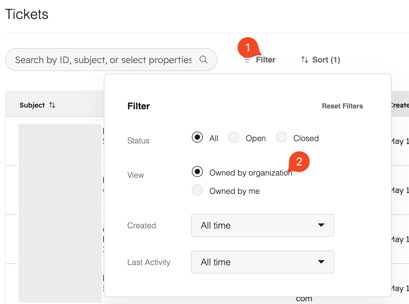
**Tip.** The Filter panel remembers your last selection within a session but may reset to **Owned by me** on a fresh sign-in. If you notice missing tickets, re-check this setting first.
#### Still don't see a ticket you expect?
Verify the ticket was opened using an email address on your company's domain. If it was submitted from a personal address, or from a different domain than the one you're signed in with (for example, a parent or subsidiary domain), it won't appear under **Owned by organization**. Reach out to Support and we'll associate the ticket with your organization so it shows up in your portal.
- [Web App](https://portal.tenovi.com/web-app-support/web-app?hsLang=en-us)
[](https://www.tenovi.com/)
[mailto:email@email.com](mailto:email@email.com)
Copyright © 2026, Tenovi